Formatting issues
Fixes for the most common formatting problems: strange lines of code in sent emails, emojis that don't render, images that disappear, and markers that don't get merged.
My email contains many strange lines of code (bad formatting)
If your sent email is full of HTML-looking code instead of your styled template:
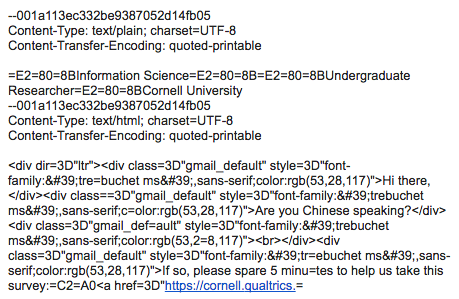
This usually means you (or your recipients) are opening the email with a client other than the Gmail web app — Apple Mail, Outlook, or Google Inbox — or you copy/pasted your email from another tool like Word or Google Docs. The HTML inside your email gets broken, causing formatting issues or missing images.
To fix this, create a new draft directly in Gmail. You can also add a disclaimer at the top of the email asking recipients to open the online version instead of using a local client.
I'm already using Gmail, but still have the issue
In rare cases, your draft is hard for YAMM to decode, or re-encoding before sending fails. To help us investigate, send us the raw email content:
-
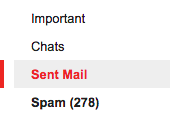
Open one of the sent emails in your Gmail Sent folder.
-
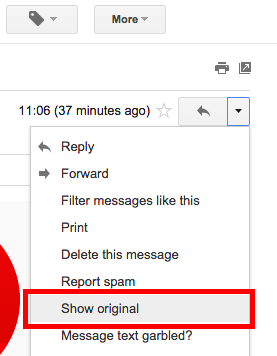
Click the down arrow next to Reply at the top of the message pane and select Show Original.
-
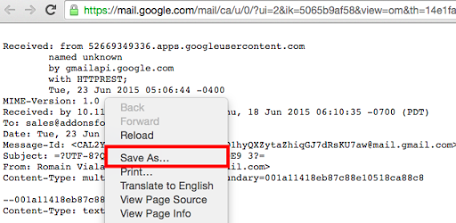
Copy the content (or save it as a text file) and send it via the support form along with screenshots of (a) your draft and (b) the email sent with the formatting issue.
List of emojis supported in YAMM
Due to restrictions from Gmail App in Apps Script, and depending on your type of account, not all emojis are supported.
- @gmail.com account with paid YAMM: all emojis are supported.
- All other cases: 50 emojis are supported.
Copy from this list:
☺☝️✌️✊✋❤️☎️⌨️✏️✒️☕⛪⛲⛺♨⛽⛵✈️⌛⌚⏰☀️☁️⛅☔❄️⛄✨⚽⚾⛳⛔☢️☣️⚛️✳️✴️❇️❓〰️⏭️⏯️⏮️⏸️⏹️⏺️⏏️㊗️㊙️
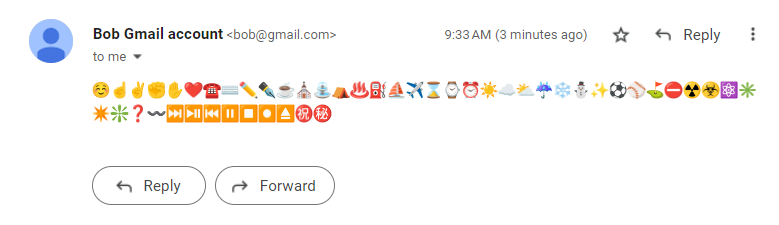
| Free YAMM | Paid YAMM | |
|---|---|---|
| Free @gmail.com account | 50 emojis | All emojis |
| Google Workspace account | 50 emojis | 50 emojis |
Upload images in emails
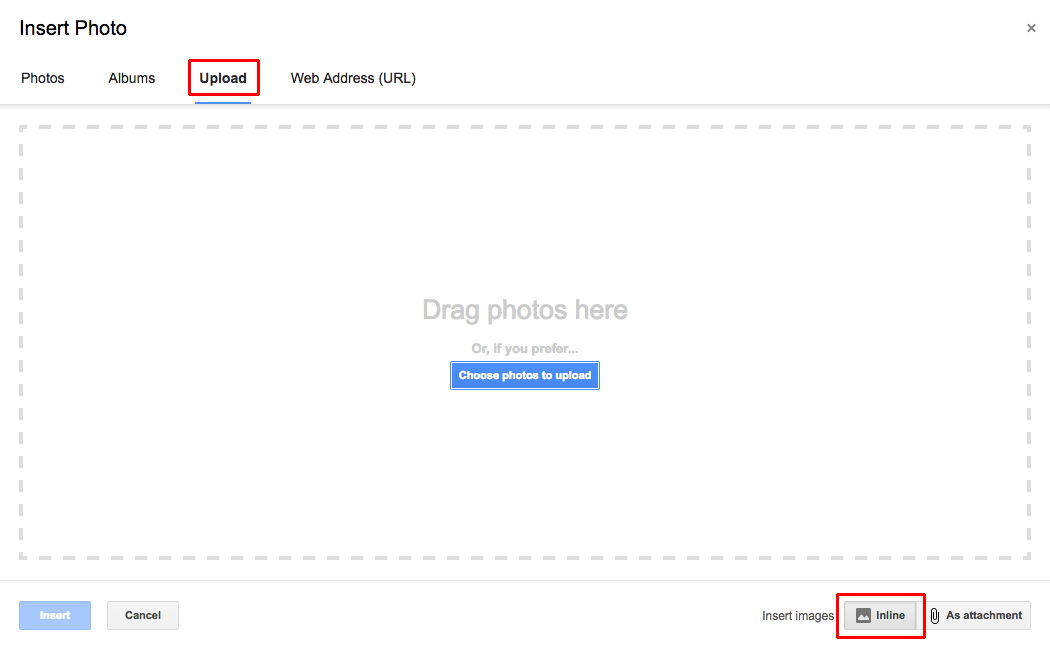
To ensure recipients see your images, add them as inline images — not as attachments.
If you want to send a different image per recipient, see Send personalized images to each recipient.
- Upload images smaller than 500 KB.
- Send test emails to verify images render. If they don't, create a new draft and re-insert.
-
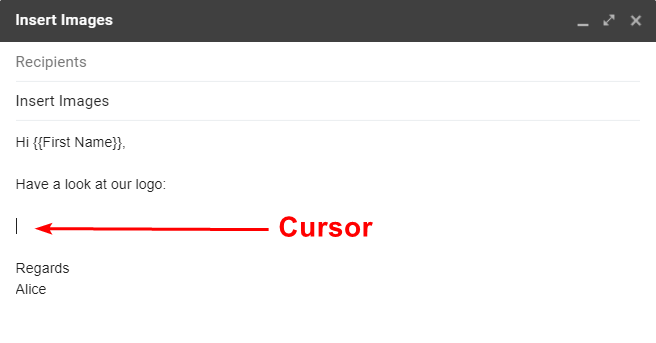
Open your Gmail draft and place your cursor where you want the image.
-
Click the Insert photo icon.

-
Click Upload and select Inline.
-
Drop or choose an image to upload.
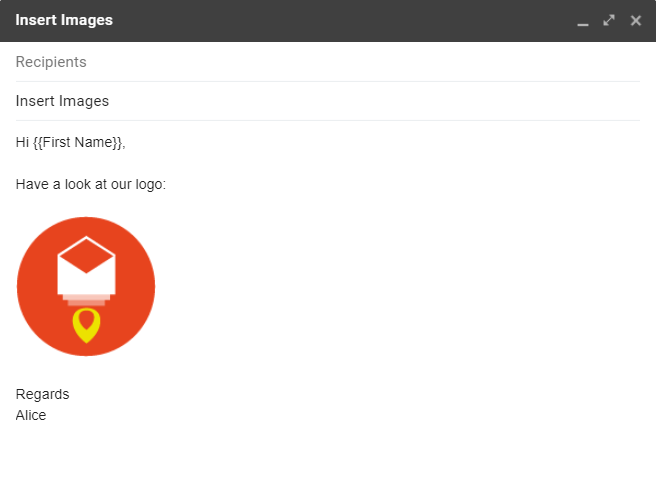
Run your mail merge — the image renders correctly.
Note: If you incorrectly inserted an image, deleting it doesn't completely remove it from the draft. This bloats the email and YAMM may have trouble sending. Create a new draft in that case.
YAMM doesn't merge information from {{markers}}
Adding {{markers}} (or <<markers>>) is easy, but if you've edited your draft a lot or pasted from another app, invisible HTML tags can break YAMM's ability to find and replace markers.
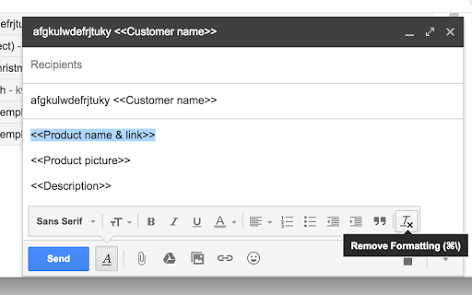
Fix: select the faulty marker in your draft and click Remove Formatting in the Gmail editor — this strips invisible HTML tags.
See Personalize your email body with custom fields and markers for more on markers.