Spreadsheet behavior
Fixes for unexpected behavior in your YAMM spreadsheet — missing rows, deleted YAMM-IDs, "No documents" in the Drive folder picker, and formulas that block sending.
Recover data erased by mistake from your spreadsheet
If some data is missing — tracking IDs, statuses, recipient info — it's likely because:
-
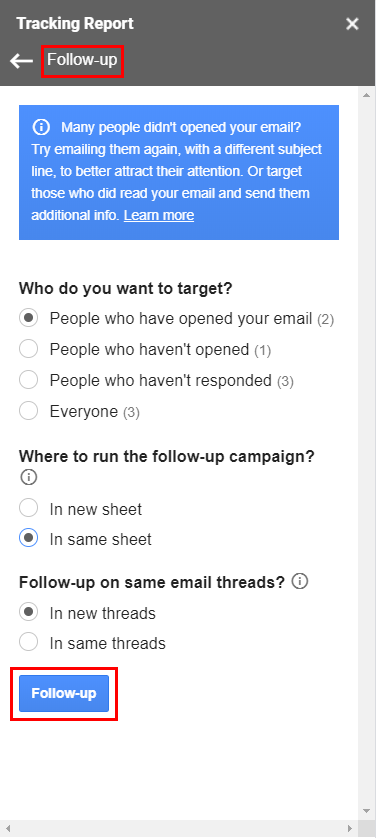
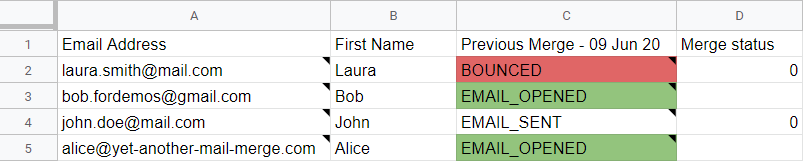
You accidentally clicked Follow-up in the tracking report, creating a new
Merge statuscolumn and replacing the original tracking — see Where to run the follow-up.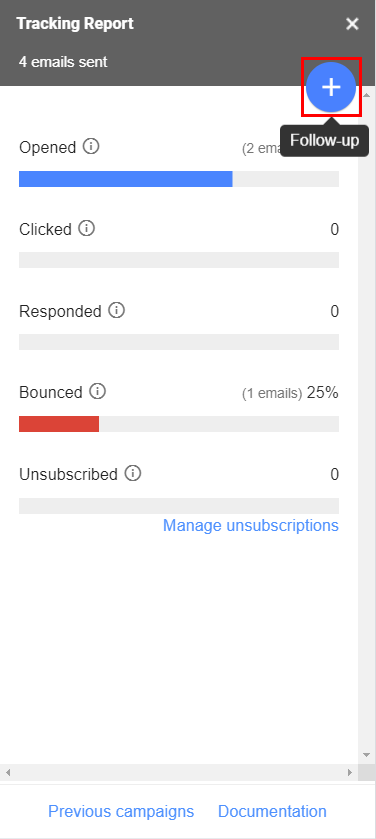
-
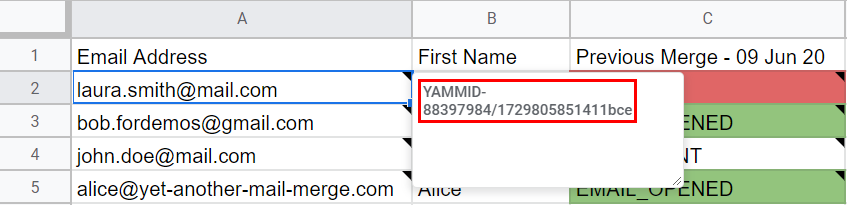
You deleted the YAMM-IDs from your Google Sheets.
-
You launched a new campaign on the same spreadsheet (same effect as a follow-up).
-
You made a mistake and overwrote your current data.
-
You deleted the spreadsheet data.
Restore via Google Sheets revision history
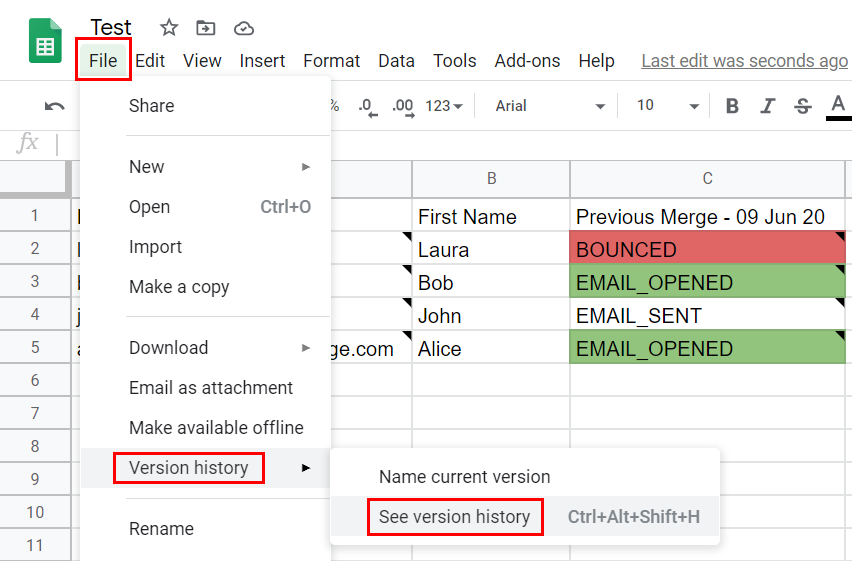
Open your spreadsheet > File > Version history > See version history.
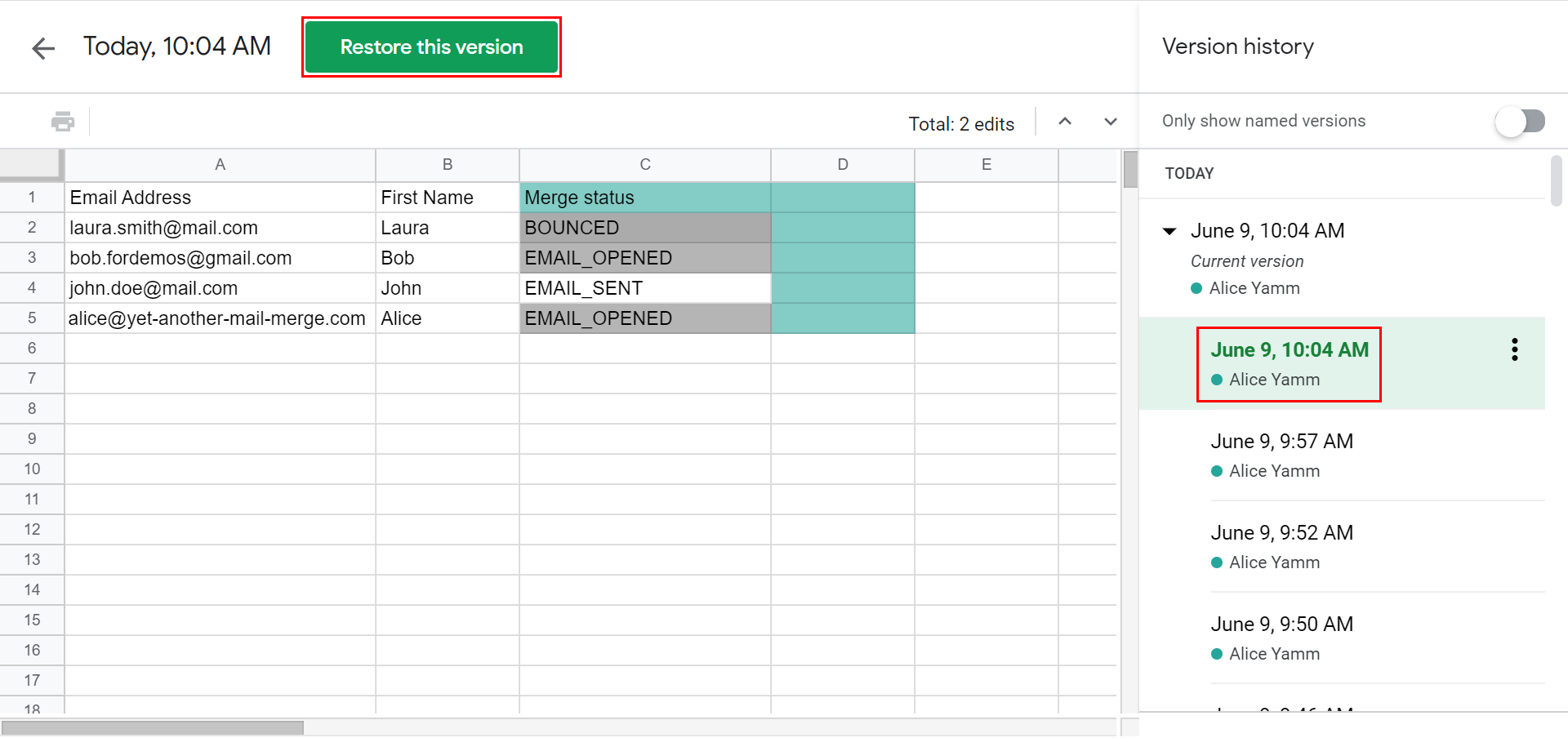
Select the correct version and click Restore this version.
Some rows / recipients are missing in my spreadsheet
After launching a campaign, some rows look like they've disappeared.
This usually happens when:
- You segmented your contact list to send to specific recipients — see Filter out some recipients.
- You clicked on a metric cell (Opened, Clicked, etc.) from the tracking report — see Clickable metrics.
Example
Before sending:
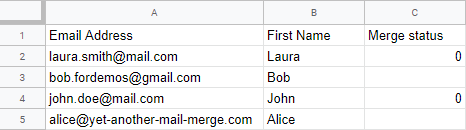
After sending, some rows are missing (those with 0 under Merge status):

Fix: turn off the filters
Your rows have been filtered, not deleted. YAMM has no option to delete rows — your data is still there.
Click the filter button in the spreadsheet toolbar to turn off the filter view.

Attachments issue: 'No documents' in the Drive folder selection
A bug in the Google picker. You see No documents when trying to select a Drive folder for personalized attachments.
Causes
1. You double-clicked the Drive folder.
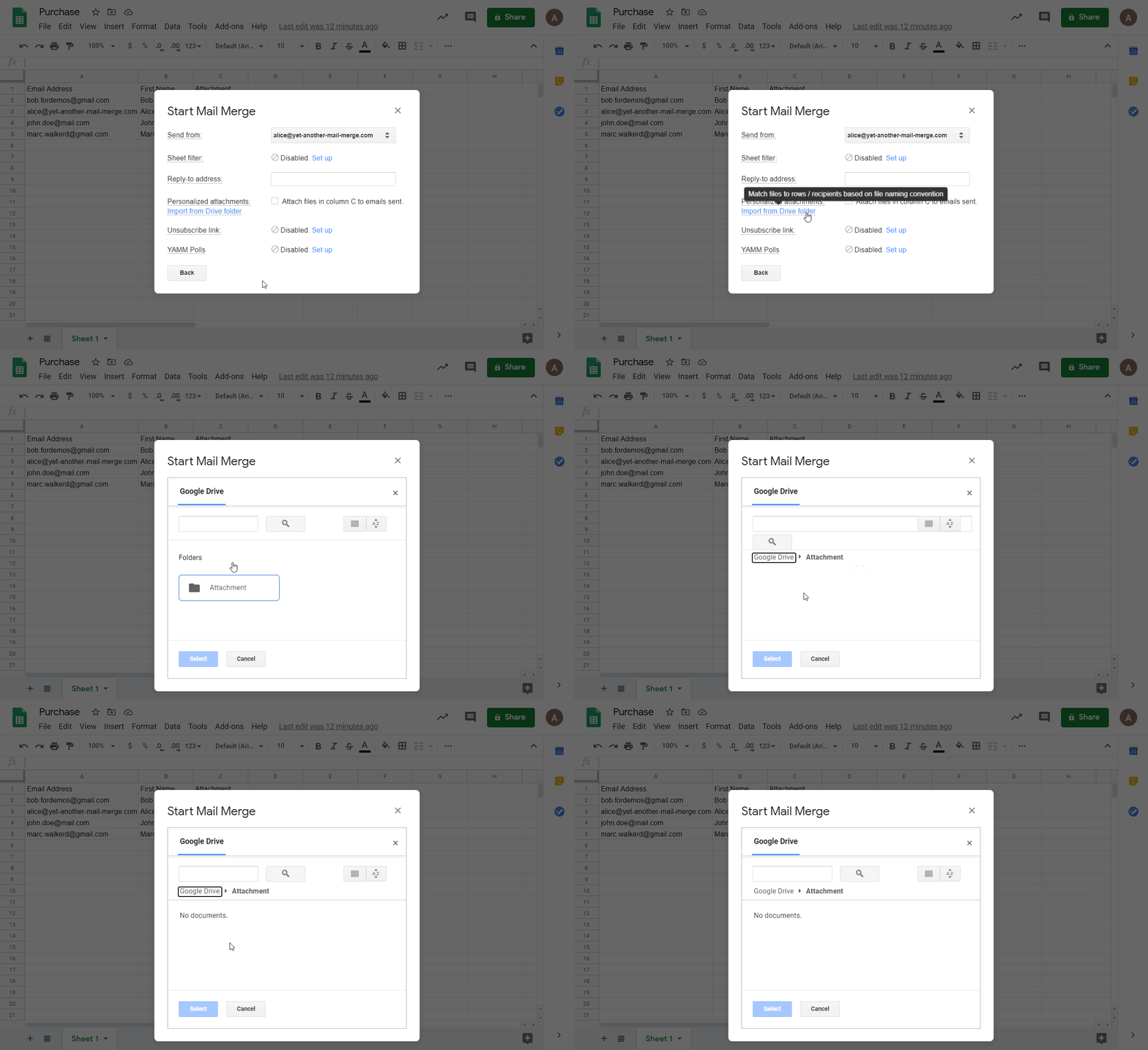
2. You opened the folder from the search bar results.
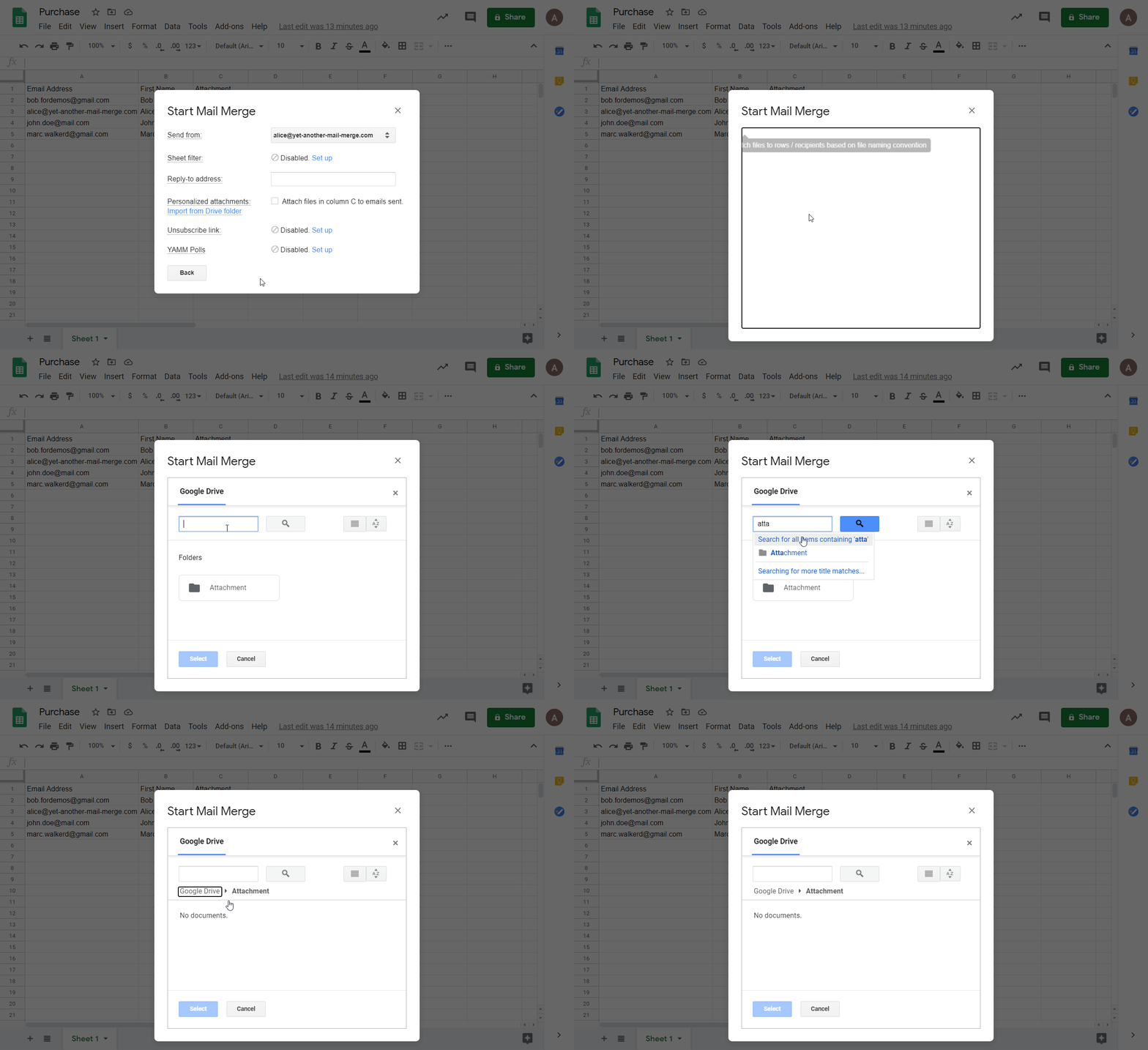
Fixes
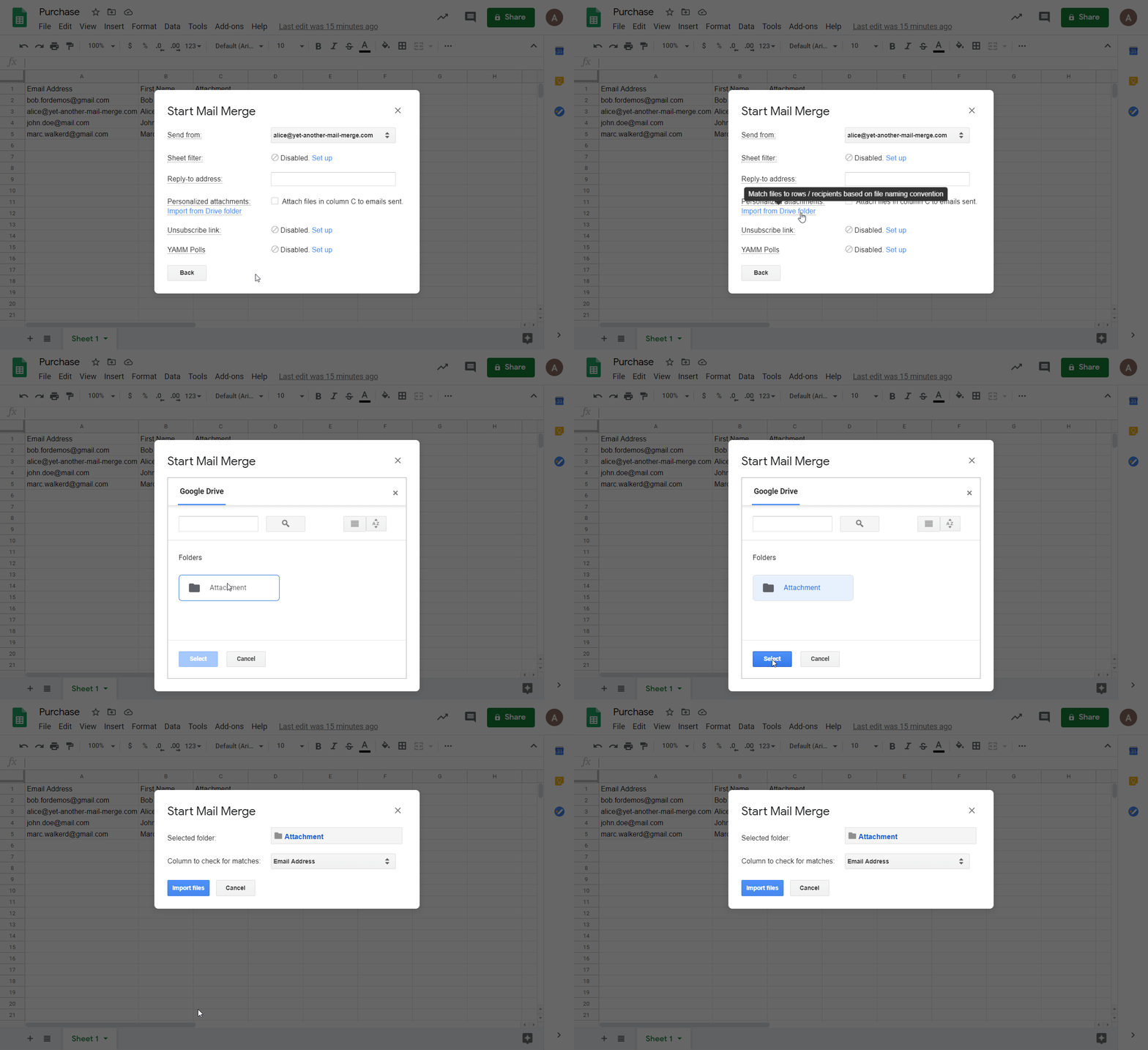
1. Select the folder directly from the list. If the folder is visible, click it once (don't open it) then click Select.
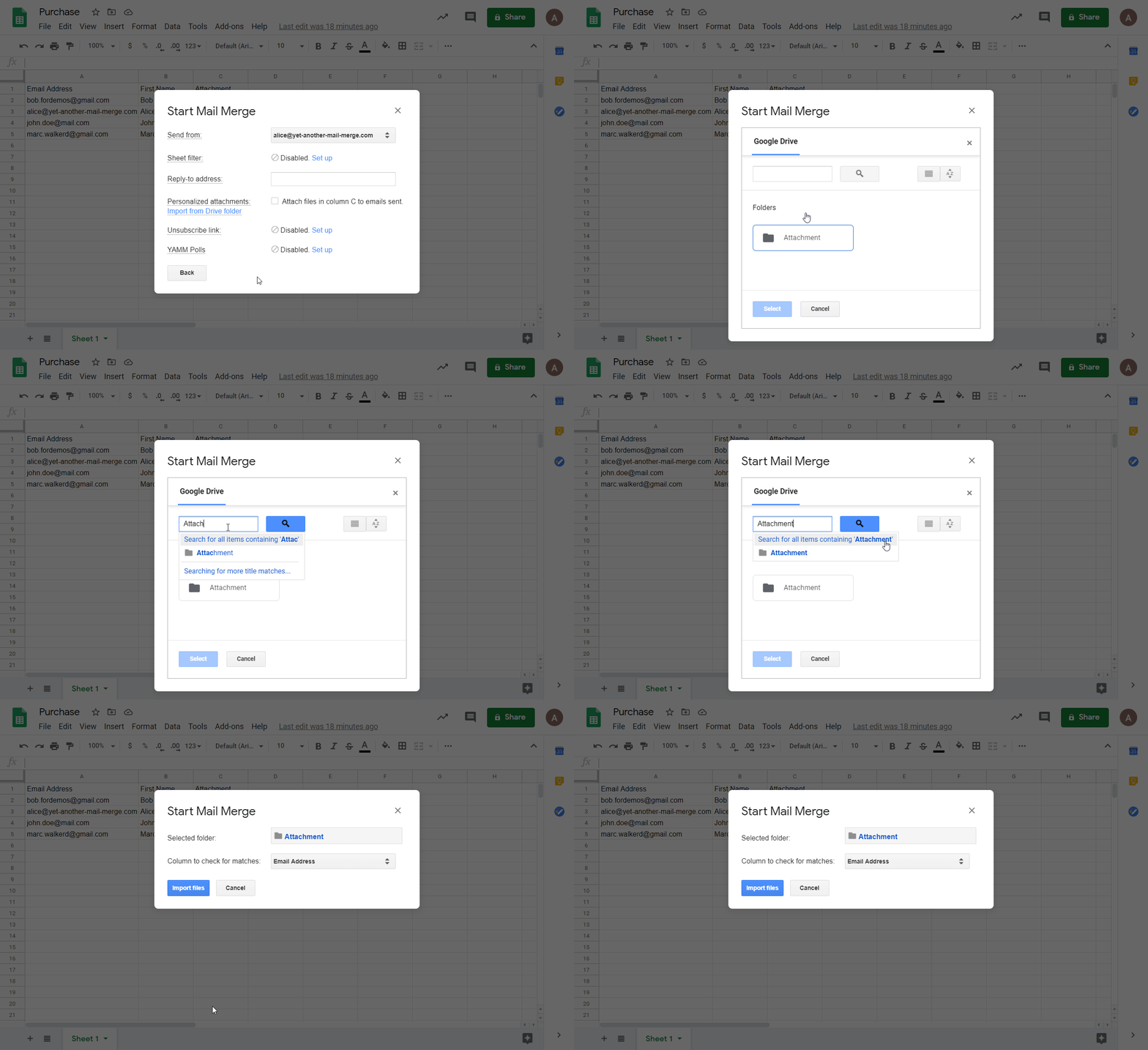
2. Click 'Search for all items containing...' instead of the search result. Or press Enter.
Formulas or scripts in your spreadsheet prevent YAMM from sending
If you have enough quota but YAMM can't send your emails, it's probably because of formulas or scripts behind your cells.
When you pull data from another source (spreadsheet, CRM) using formulas like =VLOOKUP(), your sheet may end up full of cells with heavy formulas, which can cause trouble for YAMM.
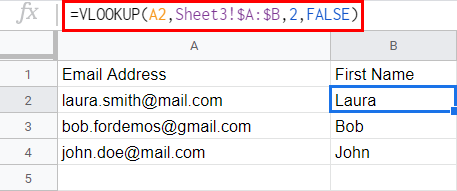
Fix: paste values only
Select the column with formulas, copy it, and paste values only.
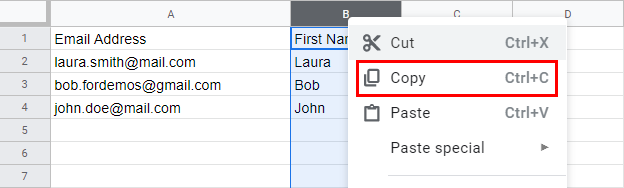
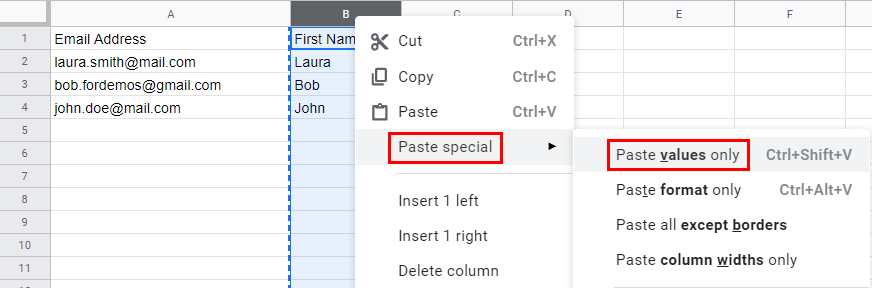
The column no longer contains formulas.
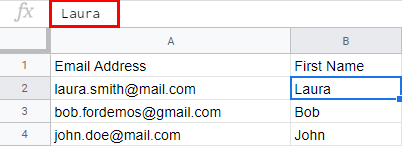
If you want to keep your formula, make a copy of the spreadsheet, remove the formula on the copy, and start your mail merge from there.