Insert an unsubscribe link in your email to reduce spam issues
Add an unsubscribe link to your email and track recipients who opt out of your emails. YAMM records this information automatically in the tracking tool.
When recipients click the unsubscribe link in your email, YAMM records this action in your spreadsheet. You can then remove their addresses from your contact list to avoid sending future emails to them.
The unsubscribe link does not work on test emails.
Note: Third-party email tracking tools may interfere with YAMM’s unsubscribe tracking. Disable them before inserting the unsubscribe link into your Gmail draft.
Activate the unsubscribe feature
1. Create your template and add the unsubscribe link
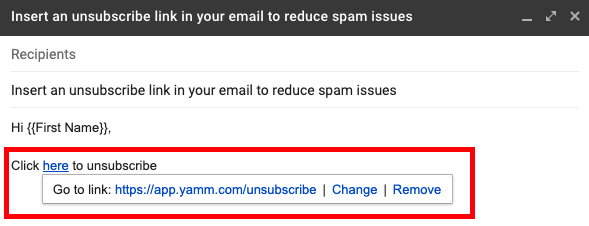
To add an unsubscribe link, insert the following URL at the end of your Gmail template:
https://app.yamm.com/unsubscribe
You can customize the message around the link, as long as the URL is included.
For example: Click here to unsubscribe.

2. Activate the tracker and send your mail merge
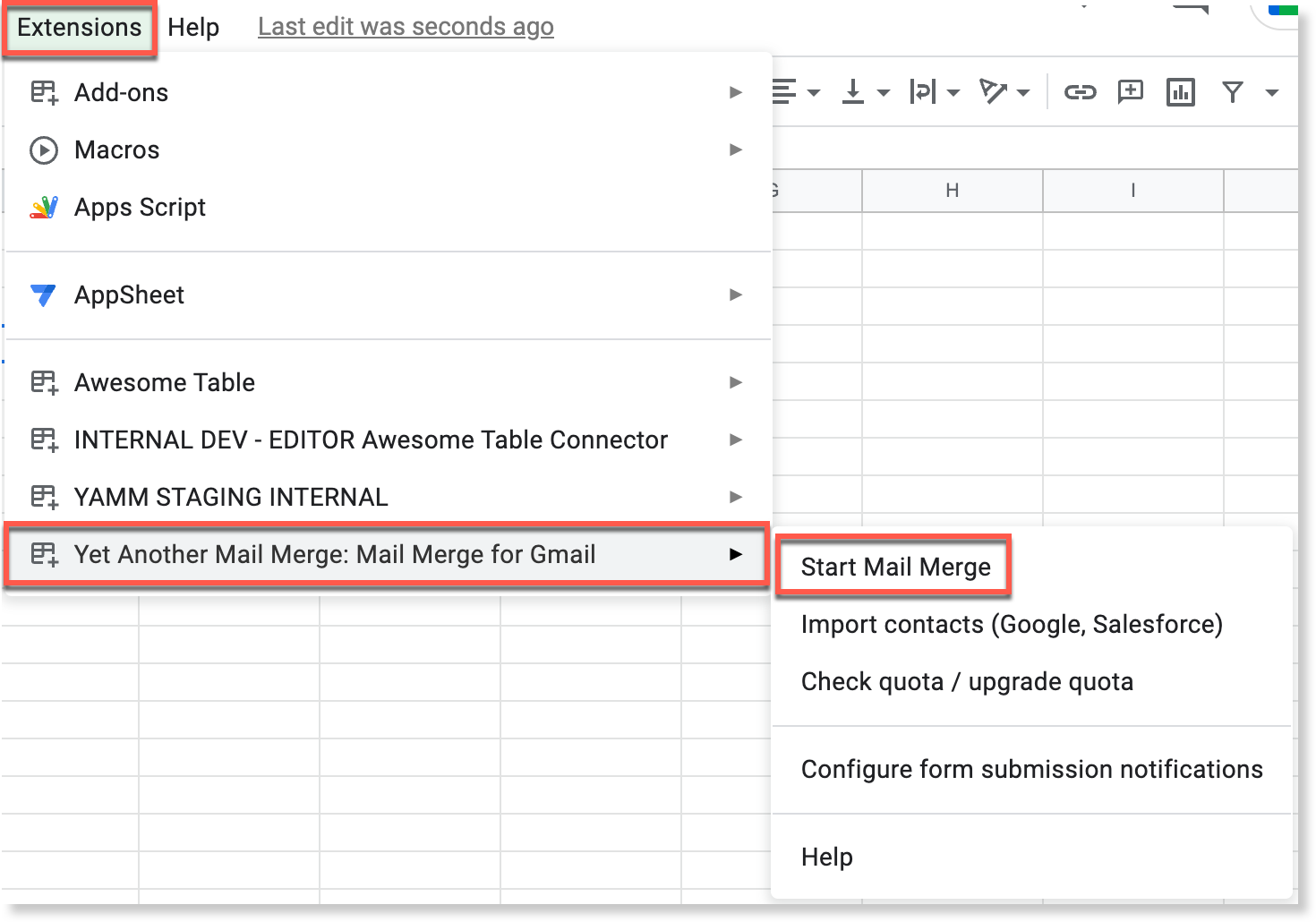
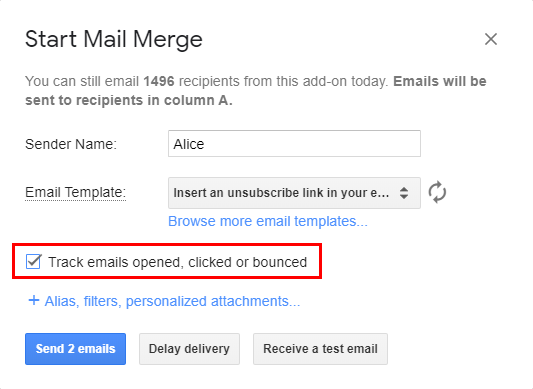
Before sending your mail merge, make sure to enable the tracker.

Then click Send emails.
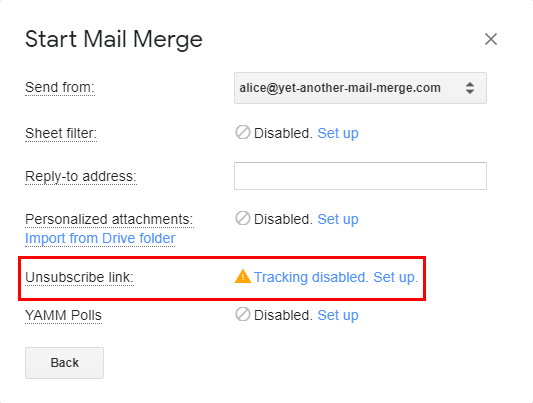
Unsubscribe feature status
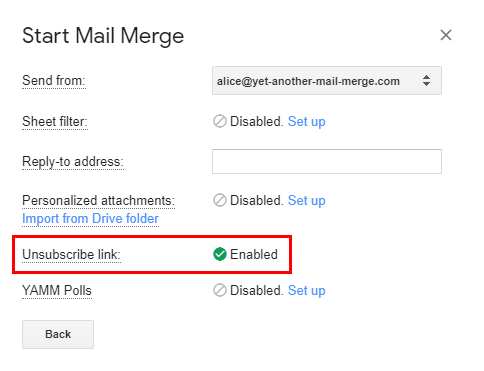
If the unsubscribe link is correctly inserted in your Gmail draft and the tracker is enabled, the unsubscribe feature appears as Enabled in the advanced features panel. If the tracker is not enabled, YAMM displays a warning before sending.


How can your recipients unsubscribe from your emails?
Once recipients receive your email, they can click the unsubscribe link. They are redirected to the web app and see the confirmation message: Unsubscription was successful.

Manage your unsubscribe list
Each time a recipient unsubscribes from your mail merge, their email address is automatically added to your unsubscribe list. This prevents YAMM from sending them emails in future mail merges, unless you remove them manually.
Check unsubscribes in real time
When a recipient unsubscribes, the Merge status column in your Google Sheets is updated in real time with the value UNSUBSCRIBED.
You can hover over the cell to see the exact date and time when the person unsubscribed.

Edit your unsubscribe list manually
You can also manage your unsubscribe list manually at any time:
-
Add email addresses to the list
-
Remove email addresses as needed
To access and manage your list, click the button below:
Manage unsubscribe list
Skip unsubscribes in all mail merges
When you start a new mail merge, YAMM automatically checks for any email addresses in your sheet that appear in your unsubscribe list.
If unsubscribed recipients are detected, a pop-up window appears to let you know. You can then choose to:
-
Yes, skip them — recommended to respect their unsubscribe request
-
No, send anyway — if you still need to contact them

If you choose to skip them, YAMM excludes these addresses from the mail merge and displays UNSUBSCRIBED again in the Merge status column.

The list of unsubscriptions is managed at the domain level, which means that it will be updated and aggregated for all users under the same domain. This lets your other colleagues send mail merge without spamming those who unsubscribed from previous campaigns.
Why should you insert an unsubscribe link?
Yet Another Mail Merge is not an Email Service Provider (ESP) per se. It is an add-on that sends emails via your Google account. So it is your responsibility to add an unsubscribe link to your emails when needed. As a reminder, this is mandatory for newsletters. If your recipients are not able to opt-out from your list because you didn't add this link, then your email might be flagged as spam. Learn more: 'What is spam? How is your email marked as spam?'