Service and quota errors
Service-level errors that come from Google's infrastructure or from quotas — most resolve on their own or by retrying, but a few have specific fixes.
Error: 'Server is not responding / server error'
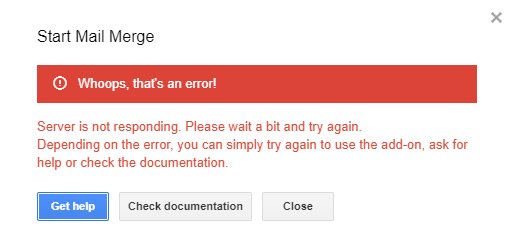
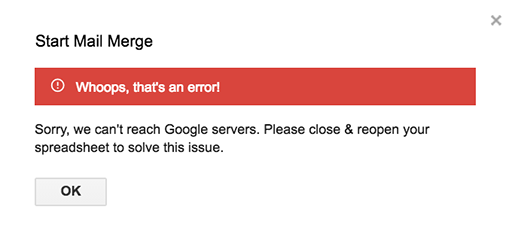
These errors come from Google's servers, not YAMM. YAMM relies on Google infrastructure — if Google's servers are momentarily down or overloaded, sending fails.
Fix: refresh your spreadsheet and try YAMM again. If the issue persists, uninstall and reinstall YAMM. As stated in our Terms of service, YAMM is strongly tied to Google's infrastructure and changes on their side affect what we can deliver.
Error: 'Service invoked too many times'
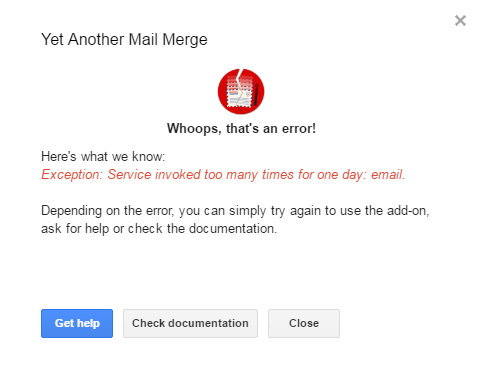
Usually happens when you include personalized attachments and exceed the day's quota.
Due to Google restrictions, the recipient quota drops to 100 per 24 hours when sending attachments from a Gmail account (this limit also applies to Pro plans). See Run a mail merge with personalized attachments for the quota table.
Error: 'Maximum time exceeded execution'
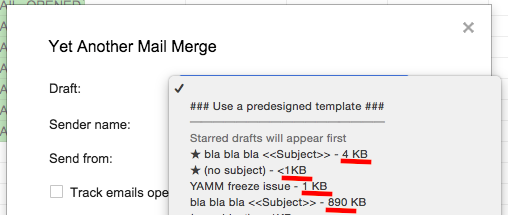
Your Gmail draft is too big — usually because of large inline images or attachments.
Recommendations
- Upload images smaller than 500 KB. For bigger images, host them elsewhere (Google Photos, Imgur) and insert the image into your draft.
- For attachments larger than 1 MB, upload them to Google Drive and add the file link in the email.
You can check the size of your draft in the Email Template dropdown.
Tip: create a new draft instead of deleting big images from an existing one. Gmail tends to hide deleted images rather than fully removing them, so the issue persists in the existing draft.
Error: 'Invalid argument' (alias issue)
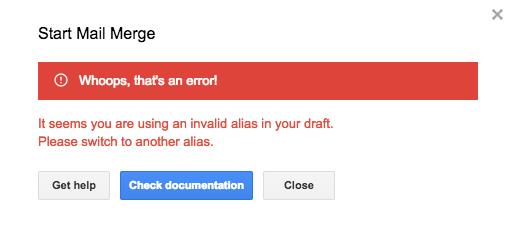
The error is linked to the alias in your Gmail draft and/or the alias configuration in Gmail settings.
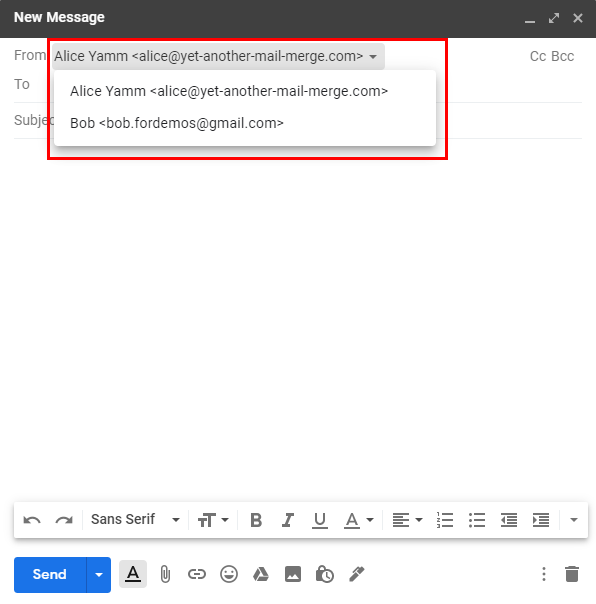
Select the right account in your Gmail draft
Open your draft in Gmail and change the From field to your default address (not the alias).
Then, if you need to send from the alias, select it in the add-on.
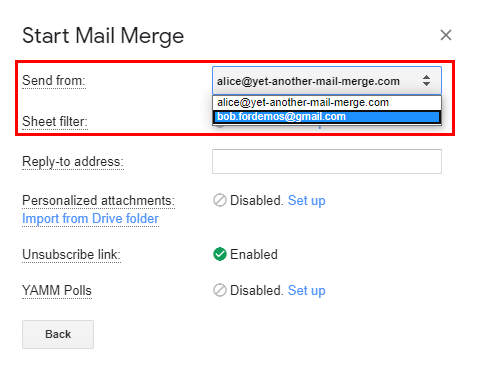
Configure your alias correctly in Gmail settings
Go to your Gmail Accounts settings and check that the email shown in the error is Treat as an alias. If you see Not an alias, modify the setting.
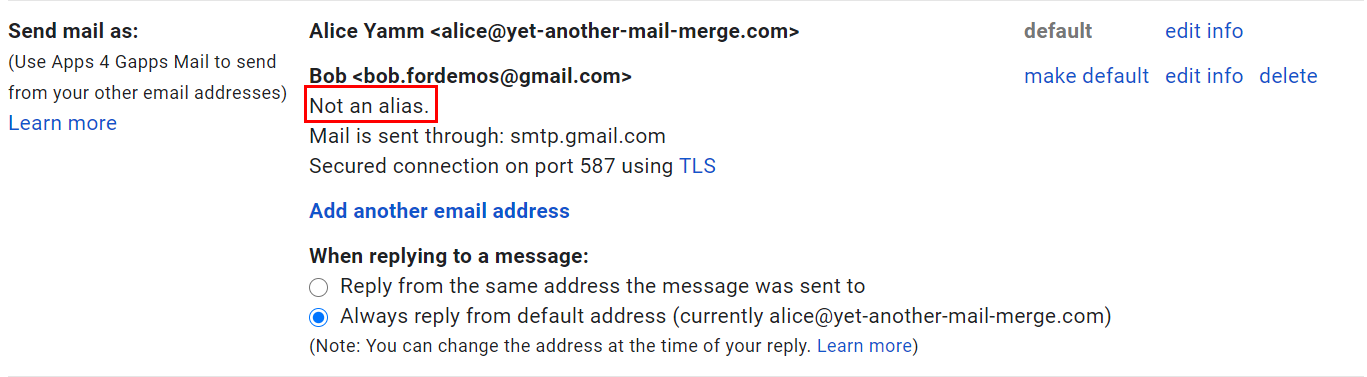
Click edit info > check Treat as an alias > validate. See Use an alias.
Error: 'Google Drive refused to connect'
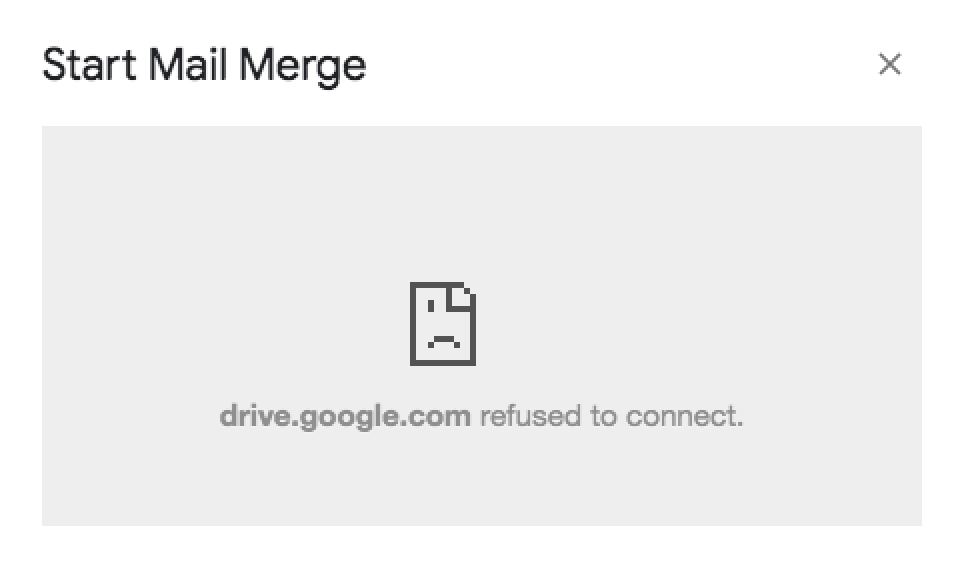
Not directly related to YAMM — typically a Google outage or a multi-account issue.
- Make sure you're not logged in with multiple accounts — see Log out from multiple accounts.
- Log out from your Google account, log back in, and try sending again.
See Google's documentation for more.