Add-on loading
Fixes for YAMM loading problems — reinstall the add-on, recover when it freezes, fix a missing add-on menu, and what to do when only a Help button shows.
Reinstall YAMM
If YAMM doesn't work as expected and there's no specific solution, reinstall the add-on.
You can remove YAMM from the add-on store only if you installed it from the add-on store. If you installed YAMM from the marketplace, follow Uninstall.
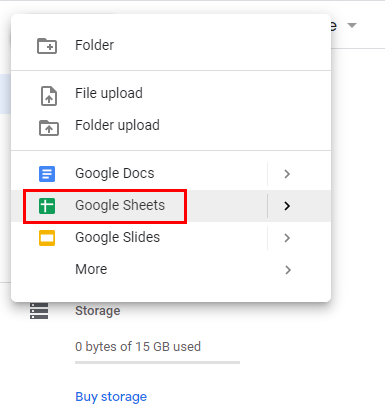
Open a new or existing Google Sheet.
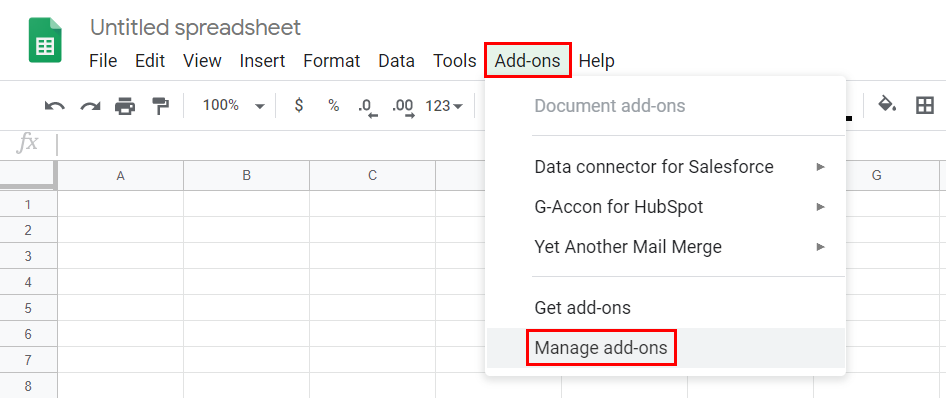
Click Add-ons > Manage add-ons.
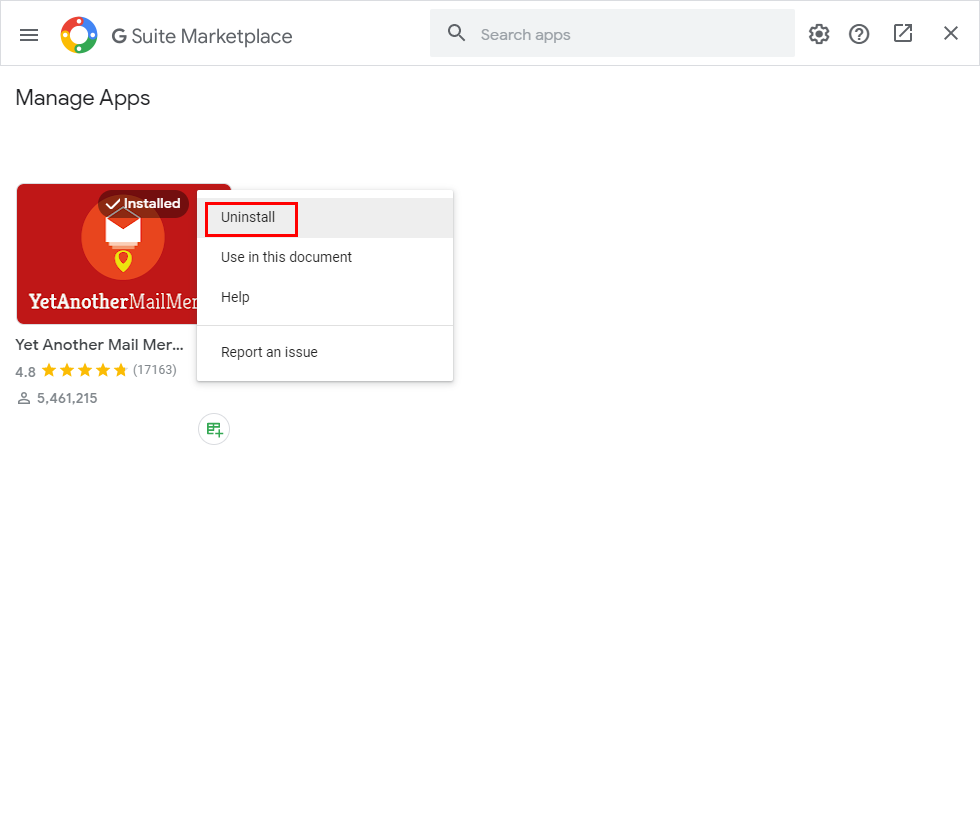
Click the three dots on the YAMM icon > Uninstall.
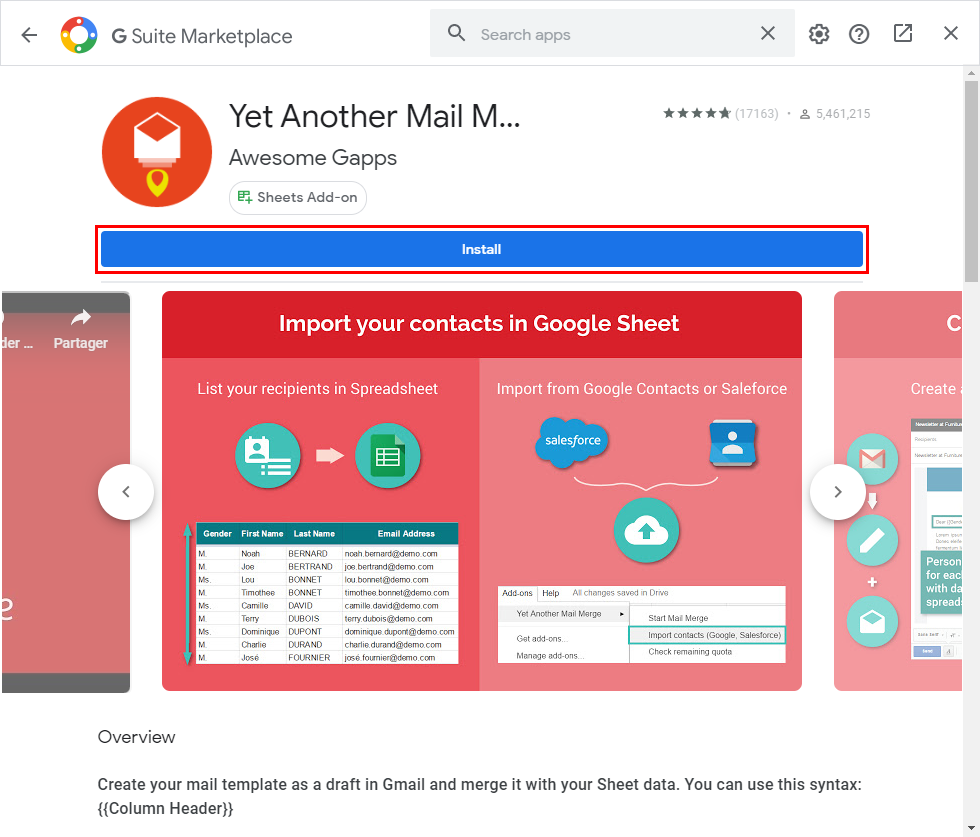
Search for Yet Another Mail Merge and click Install to reinstall.
See Install YAMM for more.
YAMM freezes or takes time to load
If YAMM freezes, nothing appears in the pop-up, or no buttons respond, try these in order:
1. Try YAMM on another browser
Browser updates can temporarily affect YAMM. Switch to another browser (e.g., Firefox or Safari if you're on Chrome).
2. Disable browser extensions
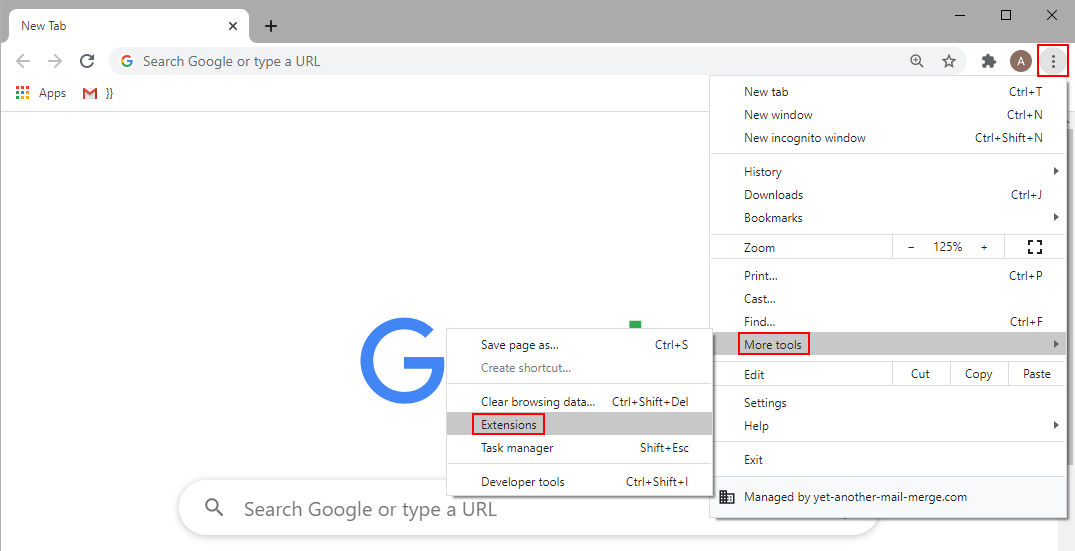
Ad blockers and other extensions can block scripts. In Chrome: three-dots menu > More Tools > Extensions.
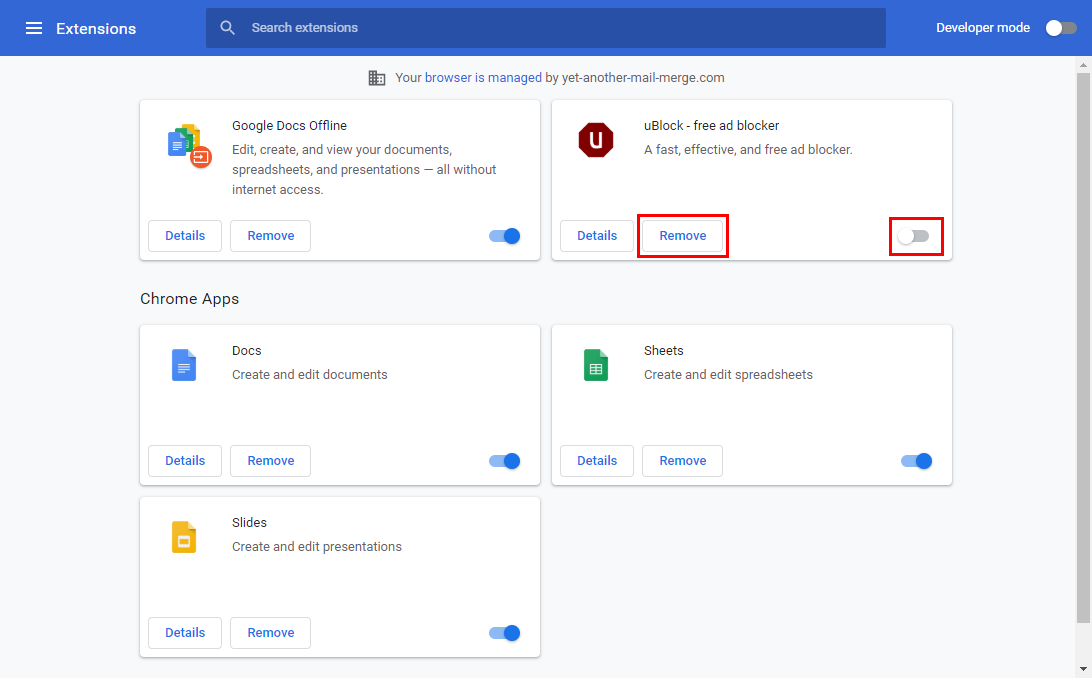
Disable or remove the extension.
3. Sign out and log in with only one account
Multiple Google accounts in the same browser cause conflicts. See Log out from multiple accounts.
4. Try YAMM on another network
Some corporate networks block YAMM. Try from home (no proxy). Workspace admins should whitelist yet-another-mail-merge.com, googleapis.com, gstatic.com, cloudflare.com, and firebaseapp.com.
5. Try YAMM in incognito
Incognito mode bypasses cache, history, extensions, and ensures you're not signed in with multiple accounts. If YAMM works there, the issue is local — clean up cache and extensions.
6. Open your browser console and send us a screenshot
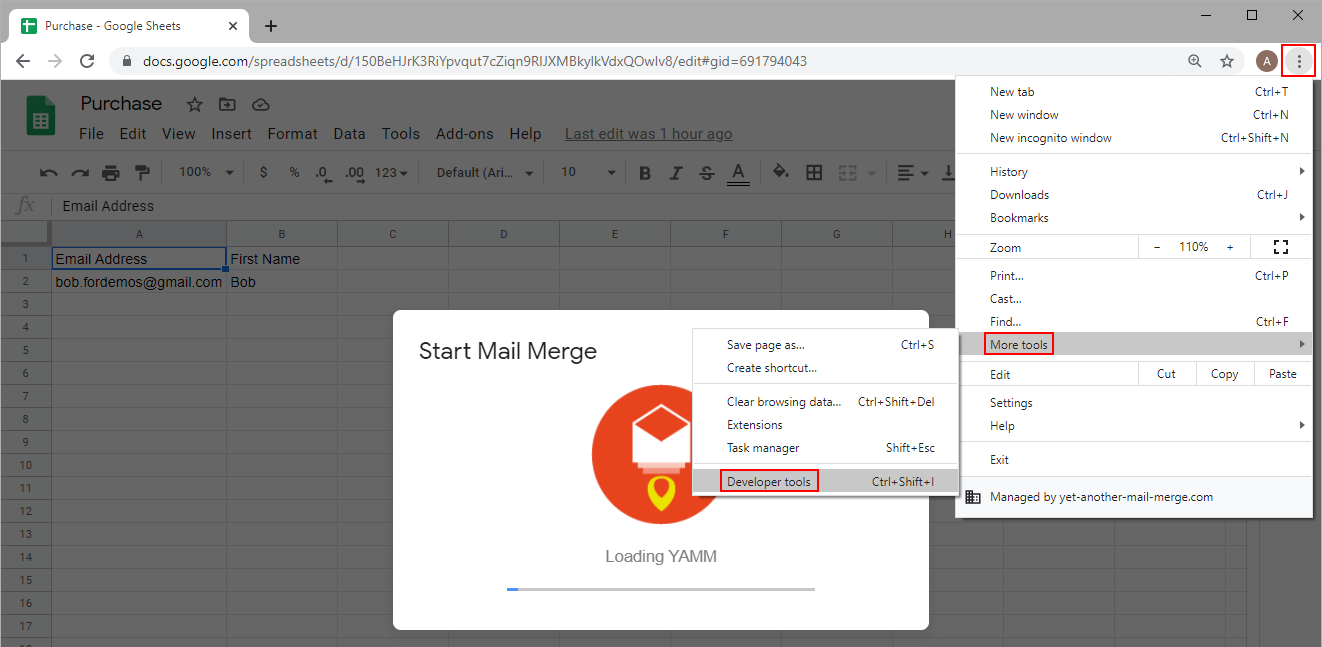
In Chrome: menu > More Tools > Developer Tools.
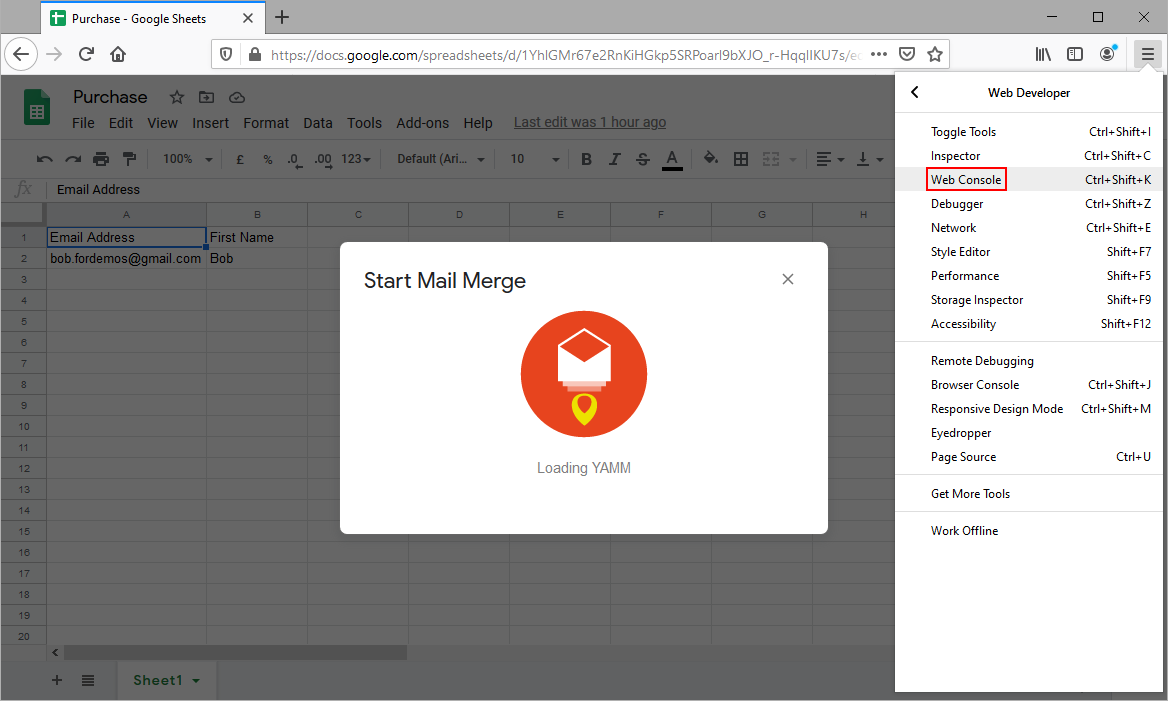
In Firefox: menu > Web Developer > Web Console.
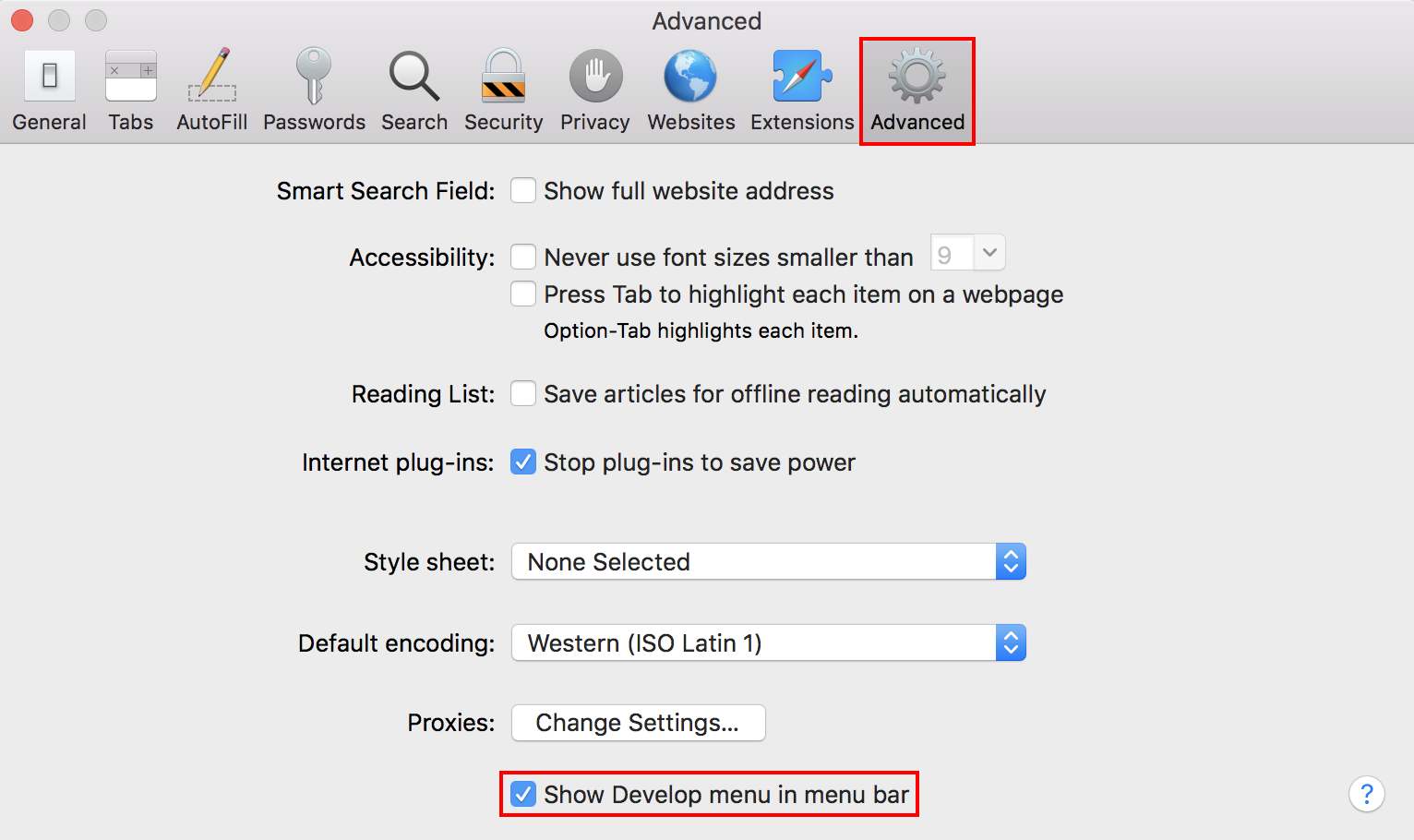
In Safari: Preferences > Advanced > check Show Develop menu in menu bar, then Develop > Show JavaScript Console.
Click the Console tab. If there are JavaScript errors, they appear in red.

Send a screenshot via the support form.
The YAMM add-on menu doesn't load properly
A temporary issue, usually fixed within seconds.
Only 'Help' is displayed in the add-on menu
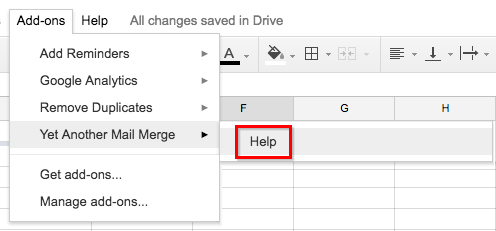
Refresh the spreadsheet and try again.
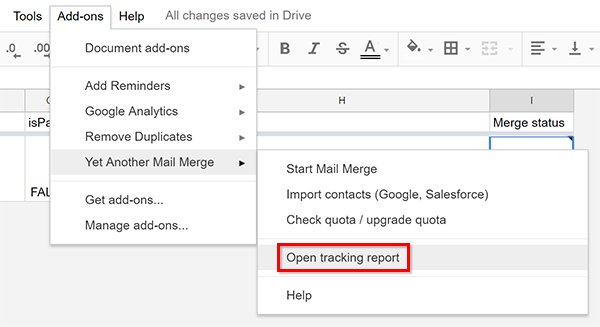
The 'Open tracking report' button doesn't appear
You see Configure form submission notifications instead, because YAMM isn't activated in that spreadsheet.
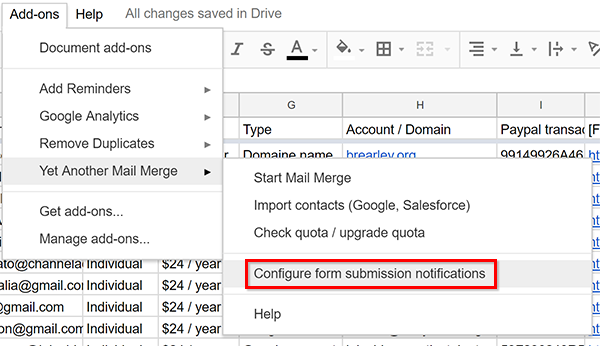
Click Add-ons > Manage add-ons > click Manage next to YAMM > Use in this document.
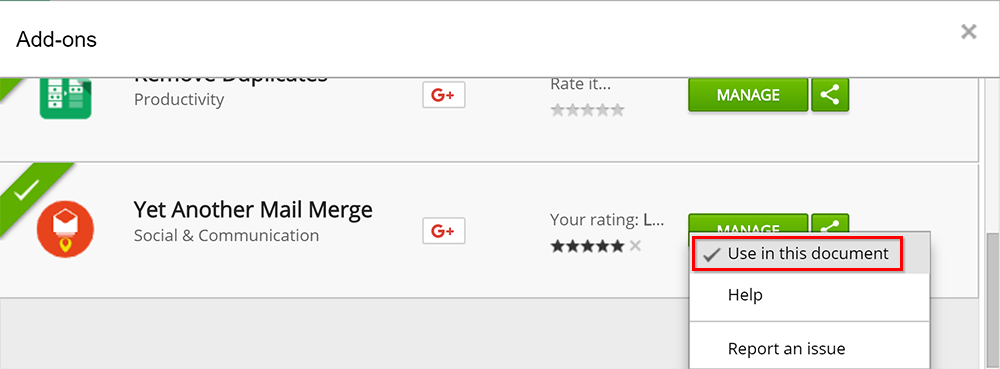
Refresh the spreadsheet — Open tracking report appears.
The 'Add-ons' menu doesn't appear on my spreadsheet
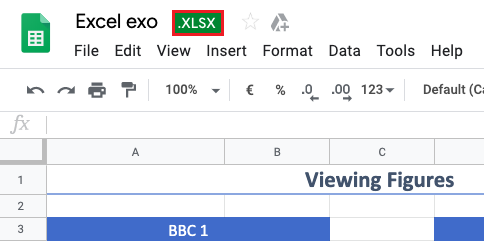
If the Add-ons menu is missing, you're probably looking at an Excel file (green .XLSX indicator at the top).
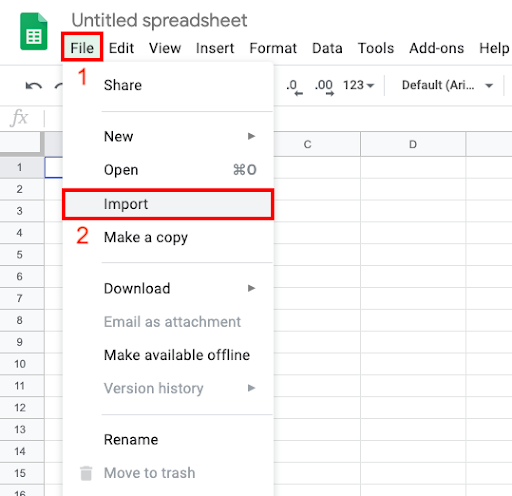
Open a new Google Spreadsheet (File > New > Spreadsheet), then File > Import the Excel data into the new spreadsheet.
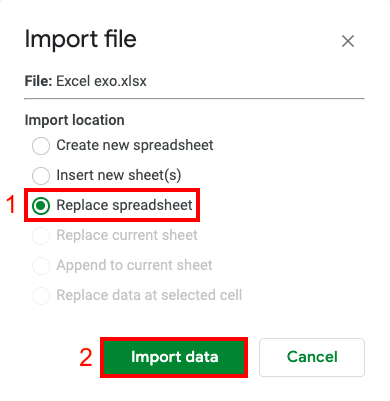
The Add-ons menu now appears.
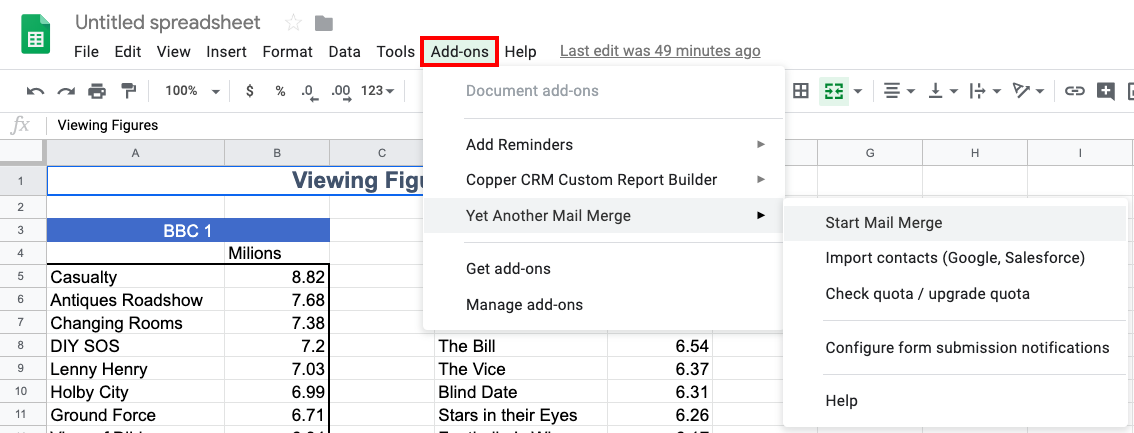
Only a Help button appears in the add-on menu
When you open a spreadsheet, wait around 5 seconds for the document to fully load before using the add-on — otherwise you only see a Help button.
Refresh the page a few times until the full menu appears.