Send a mail merge with a different reply-to in Gmail
Use the "reply-to" option if you want your recipients to reply to a different email address than the one you sent your mail merge.
Set a different reply-to email address
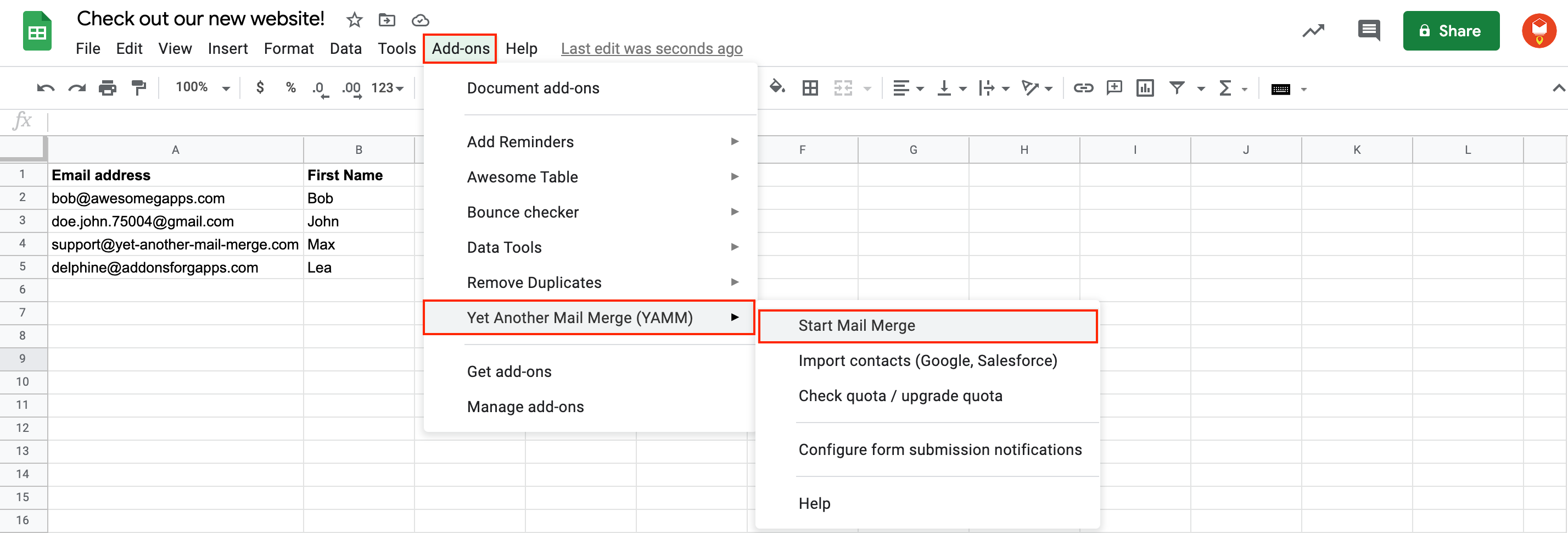
Open your spreadsheet. From the Add-ons menu, select Yet Another Mail Merge (YAMM). Click Start Mail Merge.
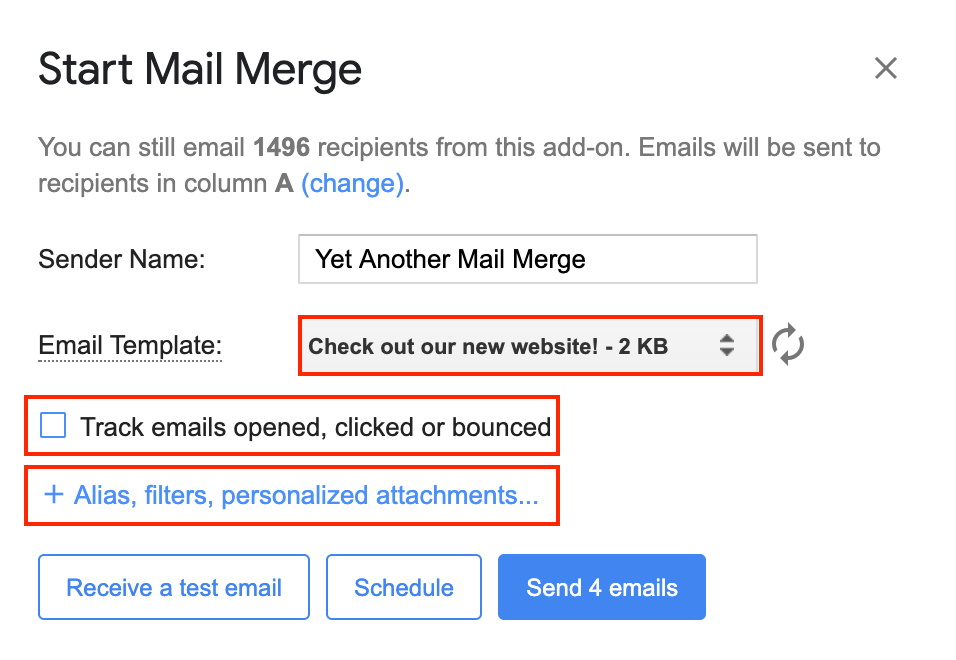
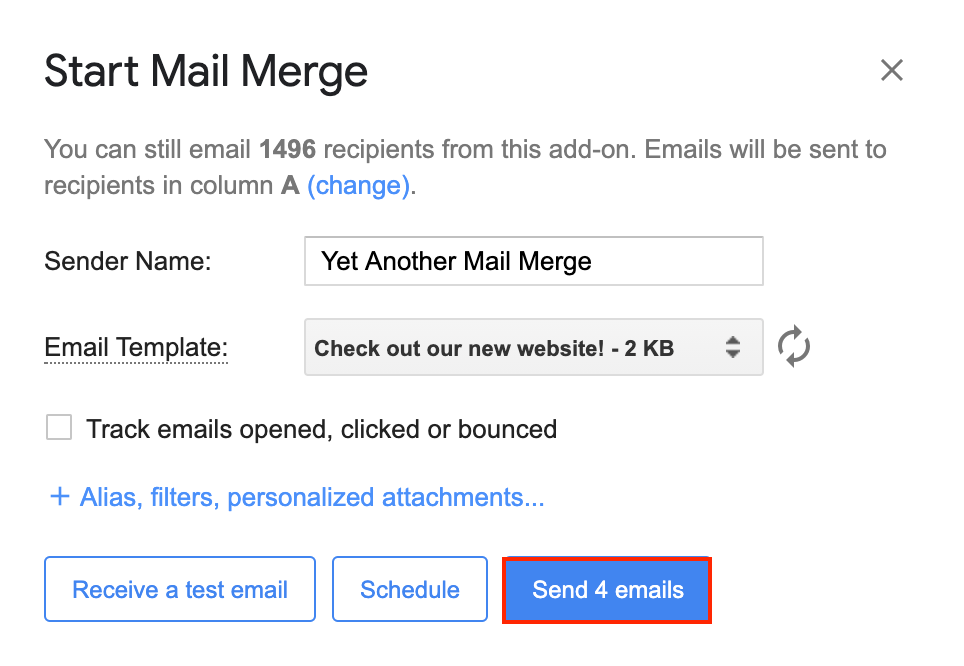
Select the draft you prepared for your mail merge and then click '+ Alias, filters, personalized attachments'.
In our example, we unchecked the tracking option.
If you send emails using a different "reply-to" and want to track your emails simultaneously, a Gmail settings configuration is necessary. Learn more: Configure Gmail to track responses sent to a different account
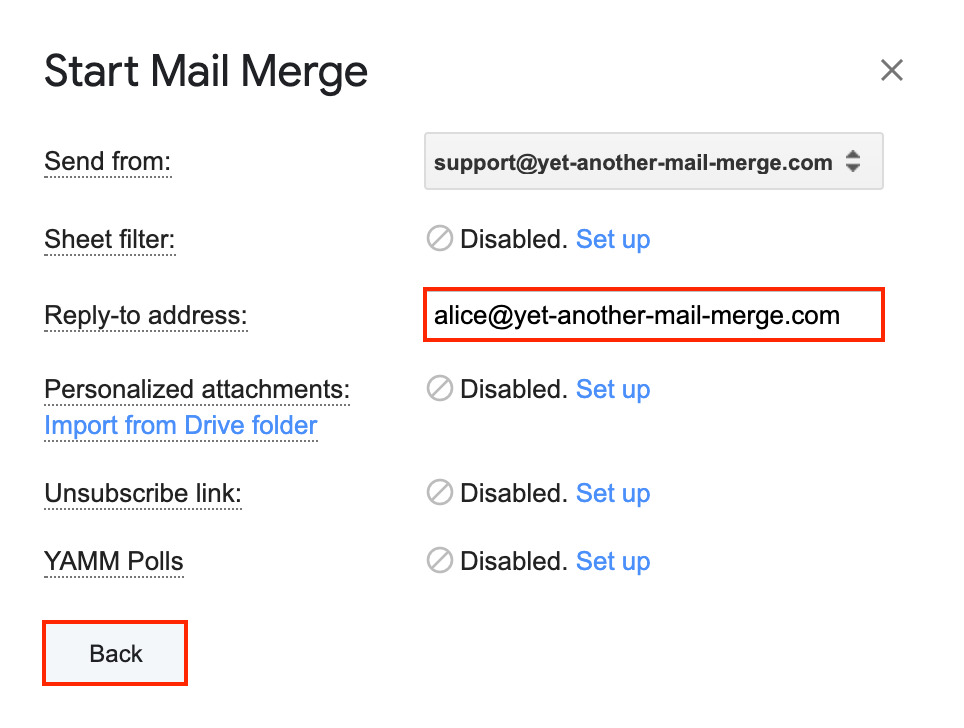
In the Reply-to address field, enter a different email address (the one you want to receive your recipients' responses). Click Back.
Click Send.
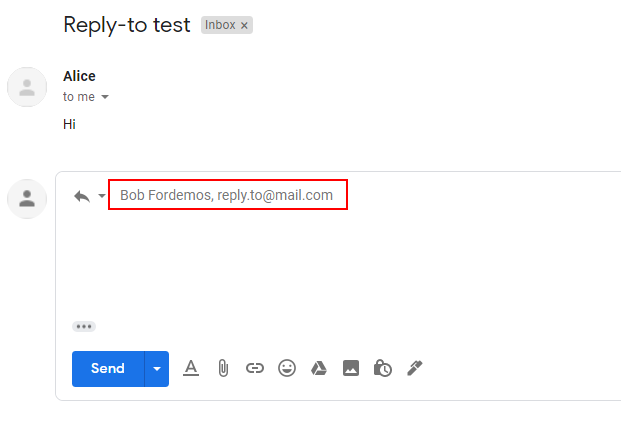
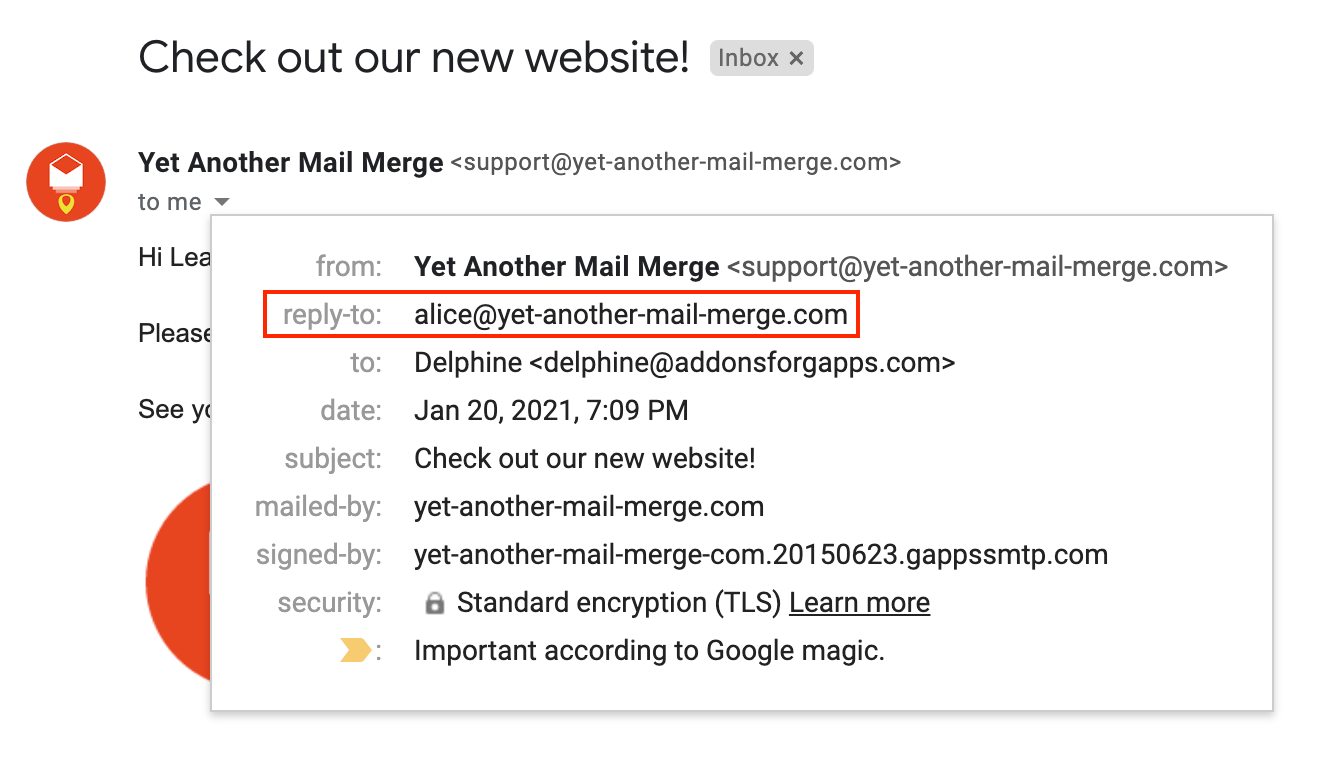
The "reply-to" email address appears in the email.
Set multiple different reply-to email addresses
Add different email addresses in the Reply-to address field separated with a comma and space.
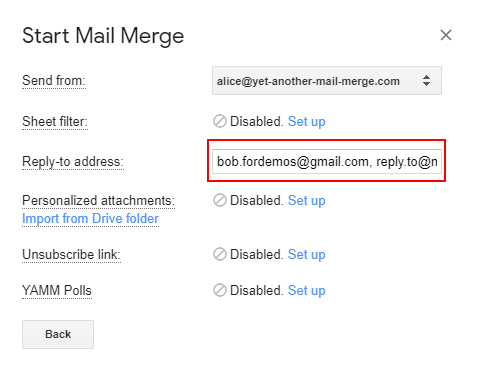
When the recipients click Reply, they will reply to all the specified "reply-to" addresses.